For keeping track and modes, entries, tweaks and customizations of the Euphonix MC Control digital mixer.
_____________[Test Mode]__________________
To put the surface into Test Mode:
MC Mix & MC Control:
– press and hold Bank L, Bank R and Nudge R while you power on the unit.
– this will put the unit into test mode.
What can you test:
– Faders: move any fader. The adjacent fader should move also, following the moves of the one you are touching.
– Touching the Fader Cap will cause the corresponding ‘ON’ button to turn off.
– Turning knobs will display the value on the display
– Touching the knobs will display ‘Touch’ on the corresponding display
– Pressing the knob-tops will display ‘Switch’ on the corresponding display.
– Jog / Data wheels display values as you turn left or right
– Shuttle Ring (MC Transport only) will display positive (right) or negative (left) values. It will display “SHTL MID” at the null position.
– Leds / Buttons: pressing any button will display its name on the touch screen (MC Control) or on the OLEDs (MC Mix).
– Please note that not all buttons have Leds. The following buttons do not have Leds:
– Nudge, Bank, Power, and Back (MC Mix & MC Control)
– SoftKeys Up/Down and 12 surface SoftKeys (MC Control only)
TFT Calibration Mode (MC Control only):
– Using the above Test mode on the MC Control, touch the TFT screen with your finger. This will begin calibration mode.
– Press and hold directly on the cross-hairs until it moves to a new location. Repeat until complete.
Auto-Test mode: (MC Mix & MC Control only)
– press and hold the Left surface Shift button, Bank L, Bank R and Nudge R while you power on the unit.
– In this mode each fader should glide up and down one fader at a time.
_____________[Network Config Mode]__________________
To choose a static IP address or set DHCP:
Press the Power button, while holding down the PAGE <R> and PAGE <L> keys simultaneously.
_____________[Euphonix Save Maps]__________________
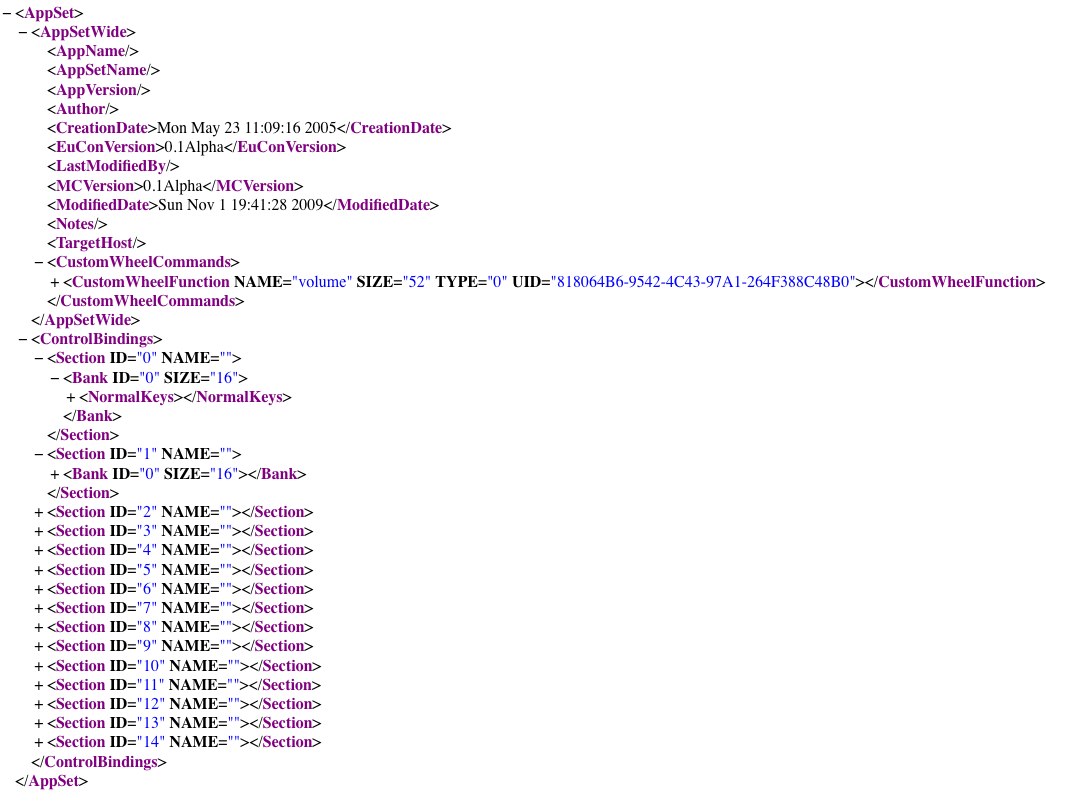
The user-set files are saved as .xml files on your Mac. These are the settings for your custom assignable soft keys.
The default user-sets are stored here:
/library/application support/Euphonix/SQRL/…
– These user-sets are updated as part of our installers. This is also the user-set that you can “restore” from the EuControl SoftKey editor.
The Custom user-sets are stored here:
/library/application support/Euphonix/UserSets/MC2User/MC_User_Set_Root/…
– These files are never overwritten by our installers. To move your custom user-set from one workstation to another simply copy the desired file from this location to the same directory on the other workstation. The new user-sets will load next time you launch EuControl.
The structure of the file is as follows:
_____________[Clean Install / Clear Prefs]__________________
here is the best way to get a fully cleaned system so you can re-install:
1. Close all application including EuControl.
– open Activity Monitor and make sure there are no audio or midi application running.
2. go to: /Library/Scripts/Euphonix Scripts/Utils/…
– run CleanEuphonix script and reboot.
3. Repair Disk Permissions using Disk Utilities
4. Now un-install EuControl using the uninstaller in Applications/Euphonix…
5. Download and install EuControl